Add Product's Videos
Add a Video to a Product
Important Rule: Each product can have only one video.
You can add this video from the following platforms:
1- YouTube (including Shorts)
2- Vimeo
3- Dailymotion
Here are the steps:
A. Add a Video to a New Product:
- Upload your video to your account on one of the three platforms listed above.
- Copy the video's public link/URL.
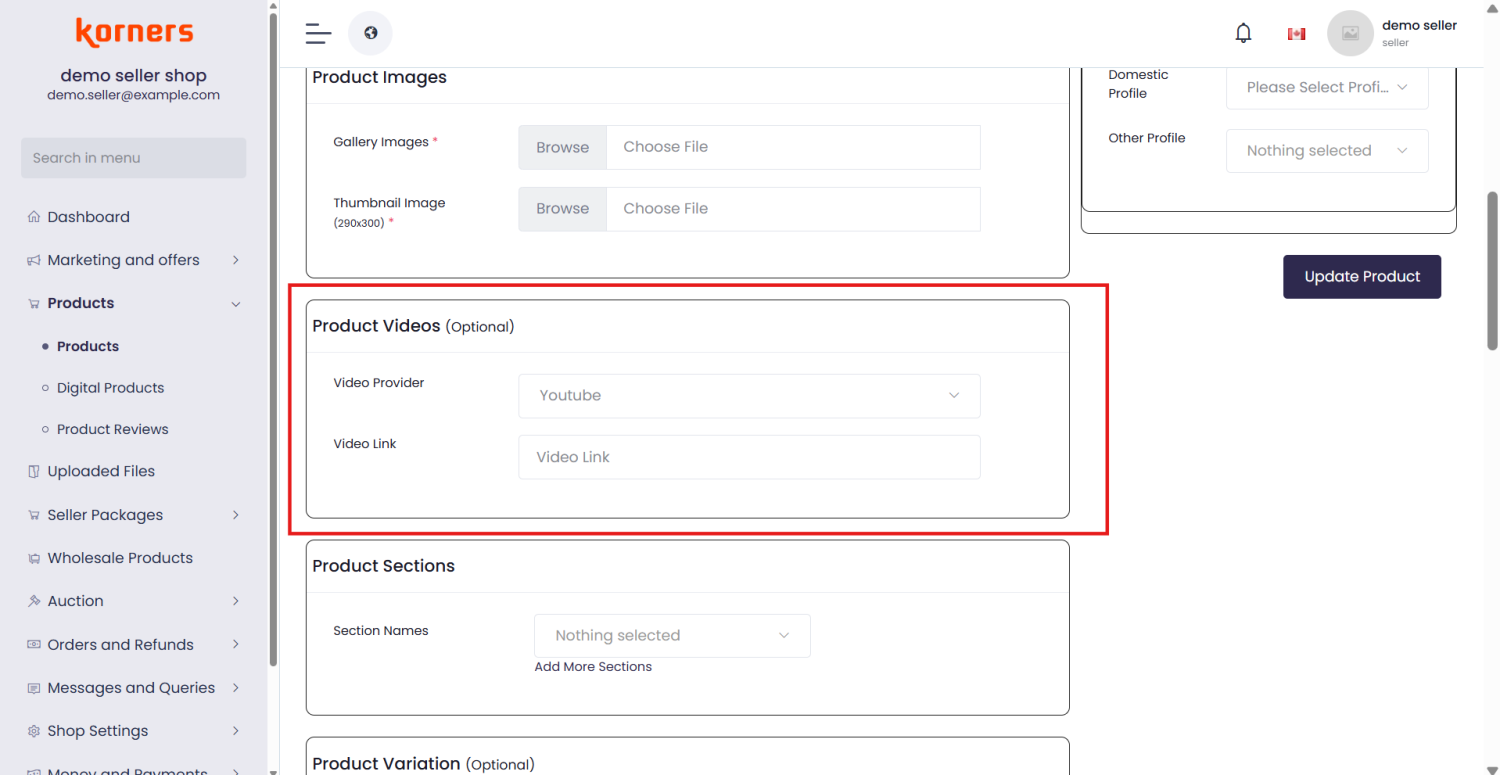
- Go to the "Product Videos" section in your product form.
- Select the video platform's name from the drop-down menu.
- Paste the video link into the "Video Link" box.
- Complete the rest of the product information and save/upload the product.
B. Add or Replace a Video on an Existing Product:
- Upload your video to your account on one of the three platforms listed above.
- Copy the video's public link/URL.
- From the product list page, find the product and click the "edit" icon.
- In the "Product Videos" section, select the platform name from the drop-down menu.
- Paste the new video link into the "Video Link" box. (This will replace any existing video.)
- Save/update the product to apply the changes.
Where to View It: The product's video will appear under the "Videos" tab next to the "Product Details" tab on the product page.
Found this article helpful?
[ 0 Out of 0 Found Helpful ]
